ChromeOS is originally based on Linux, a Unix-like OS that’s known for its security, its open-source values, and for being the backbone of web servers. Because it’s so modular, Linux powers many iot (“internet of things”) devices like your Smart TV, aircraft in-flight entertainment screens, your router, self-driving cars, and many specialty devices that require software specific to their function.
There are also full featured Linux versions (“distributions”) that you can install on your PC for regular home use like Linux Mint (popular with newbies and Windows converts), Zorin OS, Fedora, and PopOS!. Many people switch to desktop Linux because it has lower system requirements than Windows, promises more security, and an ad-less privacy advocating experience.
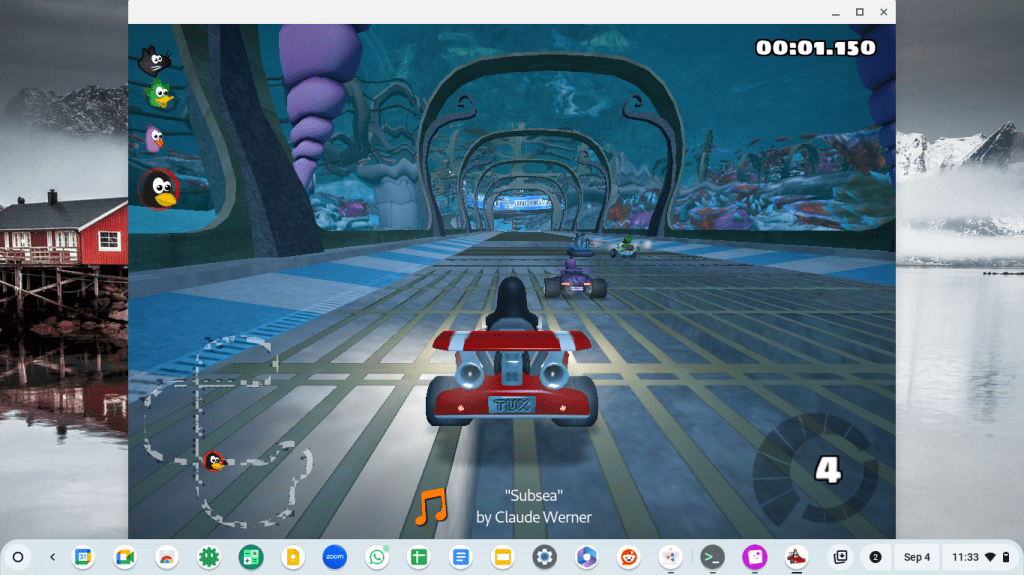
For the sake of keeping things simple and saving system resources, ChromeOS has Linux apps disabled by default. If you would like to enable Linux apps, you’ll have an additional world of offline desktop apps you can use, including office suites, games, and utilities.
That said, you’ll want to have a mid-range to more high-end Chromebook (8 GB of RAM and Intel i3 or higher) for it since Linux apps run in a container environment that requires more system resources. The sandbox protects any mistakes you make in the Linux environment from messing up ChromeOS, though at the cost of performance.
Setting up the Linux Environment
Enabling the Linux app container on Chromebooks is easy. All you have to do is go to Chromebook settings, go to About ChromeOS, scroll down to the Developer section, and turn on/set up the Linux environment.

Once it installs, a terminal window will pop up, which will probably be the equivalent of a jump scare for anyone who hasn’t used Linux before (or at least it was my experience when I first used Linux years ago).
How to (Briefly) Use the Terminal
The more terminal-saavy (I am not one of them) will tell you that you can efficiently save time and install all of the apps you need by invoking the following incantation:
sudo apt install [name of app]
However, because Linux commands are case-sensitive, you will have to know the exact name of the app for it to install. There are ways to search for it and many will argue that knowing terminal commands can be a quicker and more efficient way of doing this, but for the sake of simplicity, let’s conjure up an app-store. Type:
sudo apt install gnome-software
No, you’re not installing a weird garden gnome game, rather, you’re installing the GNOME software store, which is a desktop front-end for the app store repository for the version of Linux the container runs, Debian.
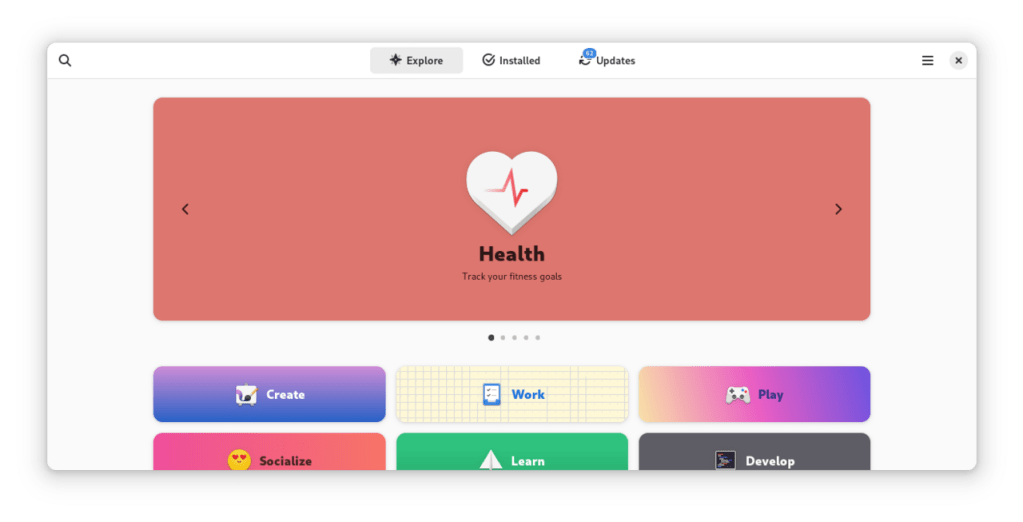
Type “y” to confirm the installation and then enter. Once the wall of text confirms the app-store has been installed, go onto your ChromeOS apps, where there will now be a new “Linux apps” section with an app titled “Software.”

This should open a traditional app store where you can browse many categories of apps you can download for free. Many Linux apps are free as in “free beer” ($0) but also free as in “free speech” (meaning they’re developed in a collaborative open-source way where anyone can see and modify the code).
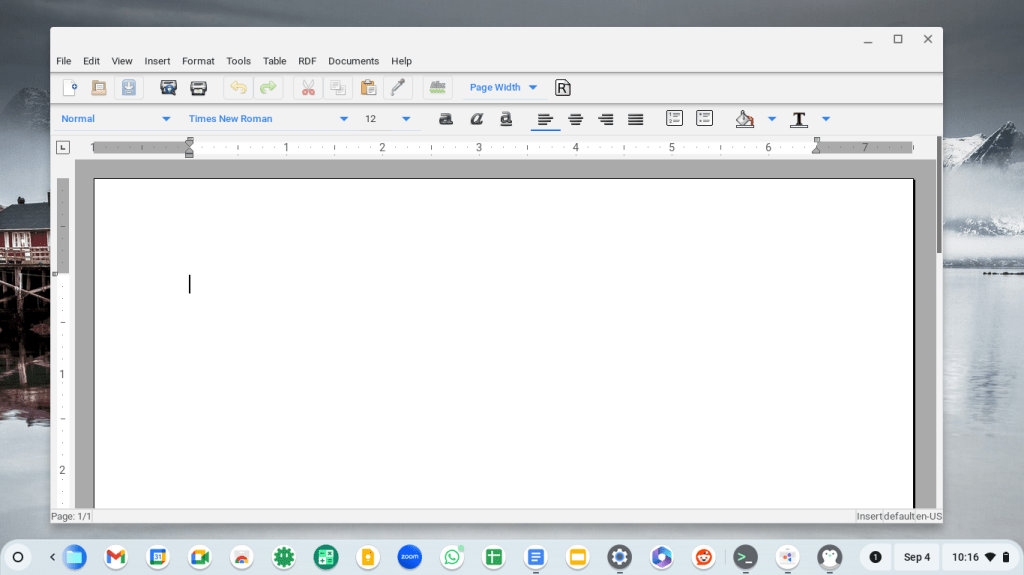
ht word processor
Is it Worth It?
Personally, I don’t think installing Linux apps on ChromeOS is worth it for me because of the loss of performance (due to the container, not Linux itself) and because of some technical snags you’ll likely hit–for example, you still have to use the terminal to update Linux apps. To update your Linux apps, you’ll separately run:
sudo apt update
sudo apt upgrade
If you want to use Linux apps at their full capacity, you’re better off installing a full featured Linux distribution on a PC, where you can rely on the graphical user interface to do everything you need to, such as with Linux Mint. You’ll also get the benefits of running Linux on bare metal, where it will be much faster, fully featured, and where you can have access to more app repositories (including Steam for gaming on Linux) without jumping through more hoops. That said, if you have a mid to high end Chromebook, installing Linux can be worth it if you want more offline desktop apps.
Found this post useful?




One response to “Guide: How to Install a Linux App Store on Your Chromebook”
[…] How to install a Linux app store. […]
LikeLike