I think that Chromebooks can find a niche in every sector: it found a niche in education due to them being cost-effective and easy to deploy, it has a niche in work settings because of the Google office ecosystem (Google Docs, Meet, and Gmail) and its simplified task-centered user interface, and with casual personal users who mostly use their machines to consume media or create non CPU-intensive content (for example, writers).
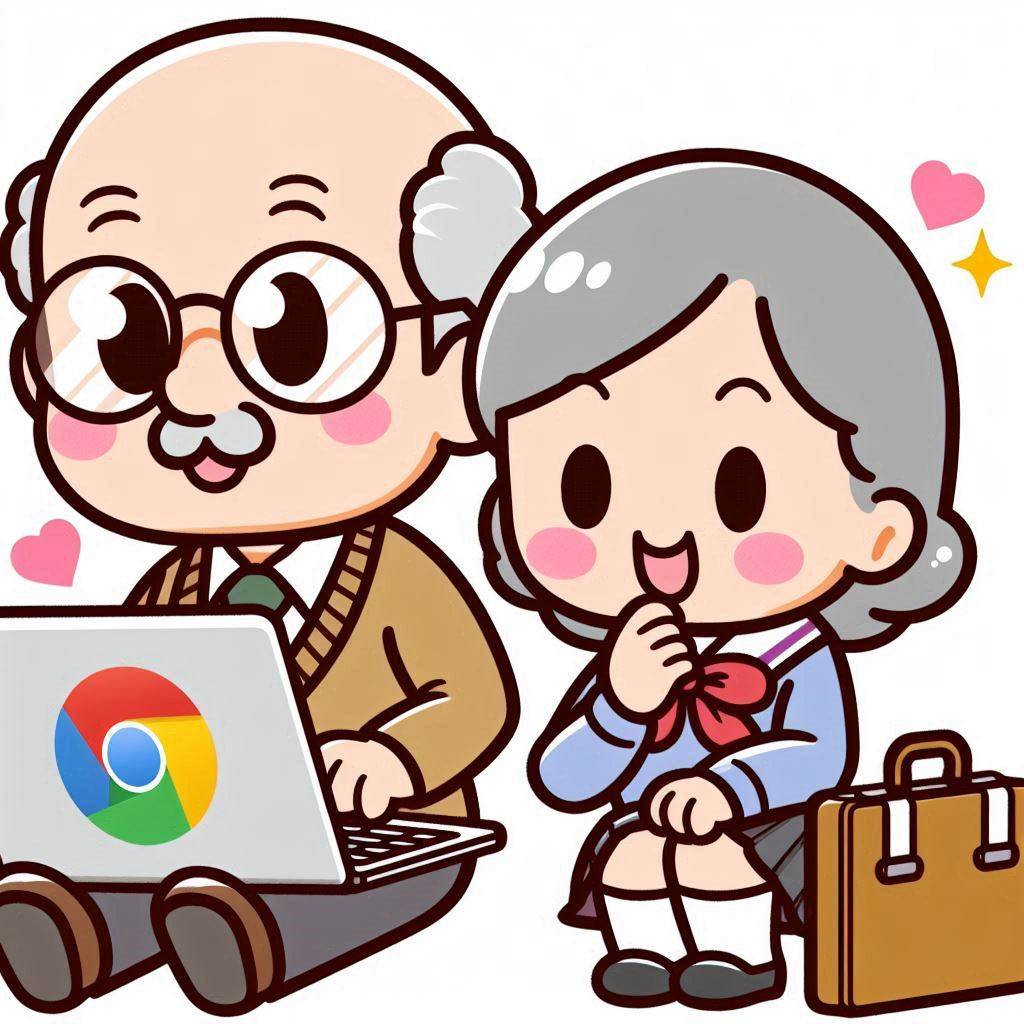
Chromebooks have also found their place with older adults who may be tech adverse, such as my tech-resistant parents. Both found their tech learning curve to be smoother than expected once they were introduced to Chromebooks. It also helps that their tech needs were basic (watching news on Youtube, recipes, email, and video calls) and didn’t warrant spending nine hunnit’ on a Macbook.
What are some benefits Chromebooks hold for older adults?
- Easy to setup: Nothing beats a 10-second boot time, even on lower end devices, as well as only needing a Google account to set things up (versus going through countless set up dialogues on other operating systems).
- Secure: This is a big one. I live faraway from my parents and neither my brothers nor I have the proximity or resources to provide the kind of tech support you may need to with Windows machines: removing bloatware, doing virus check-ups, and reducing the amount of spammy browser extensions. ChromeOS’ Linux base and simplified interface make it less of a target for malware, especially as it updates itself in the background.
Of course, software alone won’t protect any device or user who goes online. It goes without saying that basic education about identity theft, phishing, online scams, and avoiding sketchy Chrome extensions outside the Chrome app store also goes a long way. - Easy to repair: Even if you need to completely reset or repair a Chromebook device, as long as the device is set to save files onto Google drive or a USB and not on the local drive, a “power wash” of the machine will set it back to its factory state without losing a single file. This automated cloud back up approach can be done by going to Chrome settings in the browser -> Downloads -> Location -> Change (to Google Drive/USB).
- Accessibility features: Accessibility features are standard for most platforms, but it helps to have all of the accessibility settings under one panel in ChromeOS settings: including screen magnification, text-to-voice using ChromeVox, and live captions. There is also a setting that allows you to activate accessibility features straight from the panel (by clicking on the clock on the bottom right versus having to go into settings).
- Longevity: While most Chromebooks can’t be internally upgraded (as far as hardware components go), one sustainability feature that many of them have is automatic software updates for 10 years. This ensures that devices have a longer shelf life than the average PC while remaining securely patched up from software vulnerabilities.
Additional Resources for Older Adults (Transparency Disclosure: I earn a small commission for any purchase done through the below Amazon links, which help support the blog!)
- Chromebooks in Easy Steps
- Chromebooks for Seniors
- How to Chromebook (Official Google Guide)
Found this post helpful?


 Chromebook Reviews