
I had previously been resistant to getting any Intel-based Chromebook because of the draw on battery life and because I love the fanless design of the ARM-based Chromebooks like my Lenovo Slim 3.
However, this has come with a small sacrifice in performance. Since I rely on part of the Google Workspace ecosystem for work, I thought why not lean in and go for a desktop option? Now I have not owned a desktop since before college–having mostly lived off Macbooks and Thinkpads since then, so this will whiplash me back tothereignofterrorofWindowsME.
One of the challenges of doing a reviews blog is (d’oh) budgeting for equipment, so I tried to challenge myself to find a device that’s relatively recent (no more than 2 years old), still cheap to pick up, and still actively receiving software updates (this is something you want to watch out for when finding deals on ChromeOS devices). That’s when I stumbled upon a refurbished Lenovo Chromebox for $150 on ebay.
Unboxing
Chromeboxes feel like a Mac Mini version of a Chromebook. The unit I ordered (released in 2022) shipped with the following specs and accessories:
- A 12th Generation Intel Core i3-1215U Processor
- 8 GB of RAM
- 128 GB SSD
- Intel UHD Graphics
- Intel WiFi 6E
- Bluetooth 5.1
- A wired keyboard with a numpad (more flashbacks!)
- A wired laser mouse (such a Luddite!)
- Capacity to connect 4 displays
- Automatic updates until June 2032
Front Ports
- 2 USB 3.2 Gen 2 ports
- 1 USB-C Gen 2 port
- 1 headphone/mic port

Back Ports
- 1 USB 3.2 Gen 1 port
- 1 Ethernet port
- 1 HDMI port
- 1 Display Port
- A/C adapter

First Impressions
I had an older 32-inch Vizio TV lying around, which I easily hooked up to the back HDMI port. You want to make sure you set the TV picture quality to computer to avoid pixelated text, and set up your display options on ChromeOS as well. It feels strange yet oddly satisfying to not need a dongle to connect more peripherals.
Although all of my other ChromeOS devices thus far have had a fast setup, boot-up process (after downloading updates), and zippy performance for basic tasks ,I immediately noticed the even better performance gains with this Chromebox:
- Because the Chromebox has an SSD drive (instead of the cheaper eMMC storage in lower-end devices), the Files app opened a lot more quickly than the second or so it takes on the other devices.
- The 8 GB of RAM allows for a lot more media tabs open and multi-tasking. I always have to remind myself 8 GB of RAM on ChromeOS goes much further than the same specs on a Windows PC. Even my 4 GB Chromebooks are pretty good at handling many tabs open.
- The device supports both Android apps and Linux apps. I don’t plan on using the Google Play store for now because my desktop setup does not have a touchscreen display.
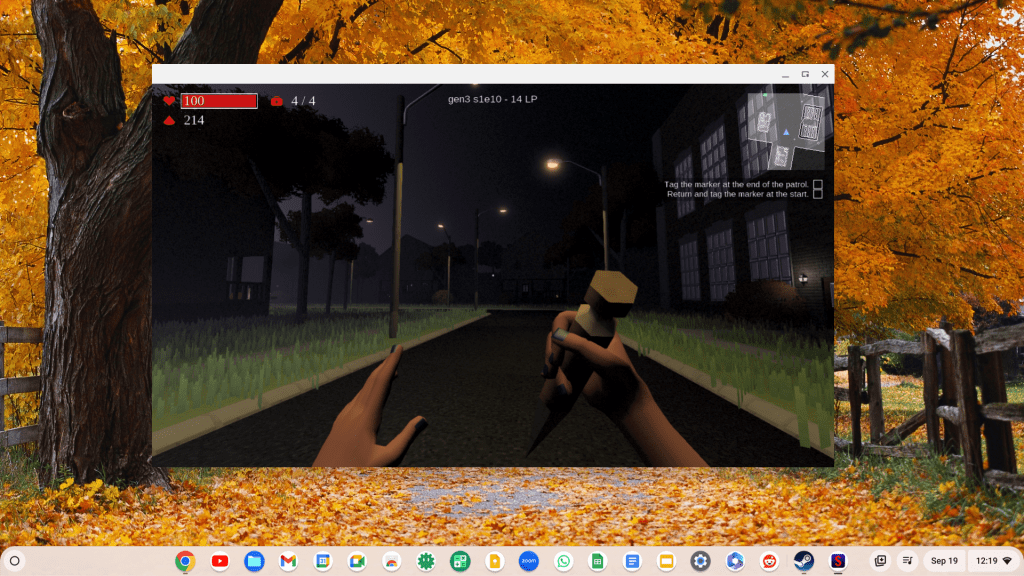
- I was surprised there’s also support for Steam, where I was able to play my favorite Steam game, the Buffy the Vampire Slayer spoof Slayer Shock. But don’t go too wild, because the device still has integrated graphics.
Use Case
I think a Chromebox would be a well-performing setup for remote teaching and telehealth, especially since you can enjoy larger screen real estate with a desktop format and connect multiple displays. You’re also able to easily see more students in one Zoom screen versus paging through several pages; as well as use the snap window feature to share content while being able to look at the virtual classroom.
Having an Ethernet port will also help with the smoothness of your connection, as a direct connection to your router will minimize WiFi interference issues.
Featured Products:
- The Lenovo ThinkCentre M60Q Chromebox (new).
- VIZIO’s 32″ Full HD 1080p Smart TV (used for monitor setup).
Disclosure statement (because the FTC and I are bffs who follow ethical guidelines): I receive a small commission for any purchases done through my affiliate link above. I am not sponsored by Lenovo nor Google and purchased the device with my own funds.


 Chromebook Reviews