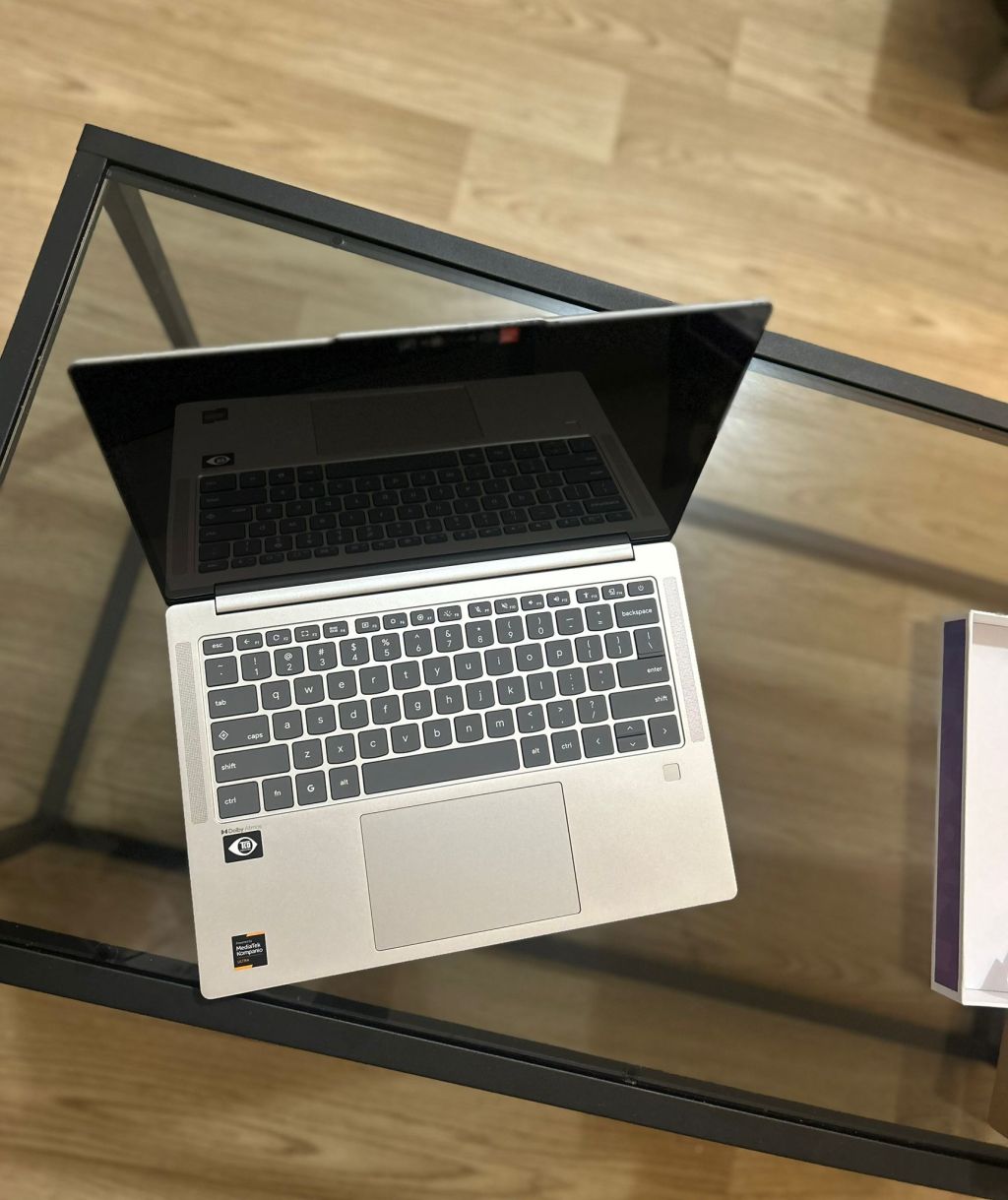
I was really excited about Lenovo’s release of their own Chromebook Plus for several reasons. I am a huge fan of ARM-based Chromebooks and have been hoping for a beefed up version of the Slim 3 to come out. Typically, many of the ARM-based choices have been historically relegated to the entry level and educational markets.
I’m biased toward ARM-based processors because of their quiet fanless convenience and longer battery life (my entry-level Slim 3 still gets 9-10 hours of battery life). ChromeOS is designed to be lean in speed and lightweight, and IMHO, so should the machines that run it. I don’t need a heat-collecting locomotive-sounding fan grill (hi Intel).
Here are the specs:
- 16 GB of RAM (finally)
- 256 GB of local storage (UFS)
- An octa-core MediaTek Ultra 900 series processor @ 3.6 Ghz
- 14-inch OLED 2K touchscreen display with 400 nits of brightness (non-convertible)
- Backlit keyboard
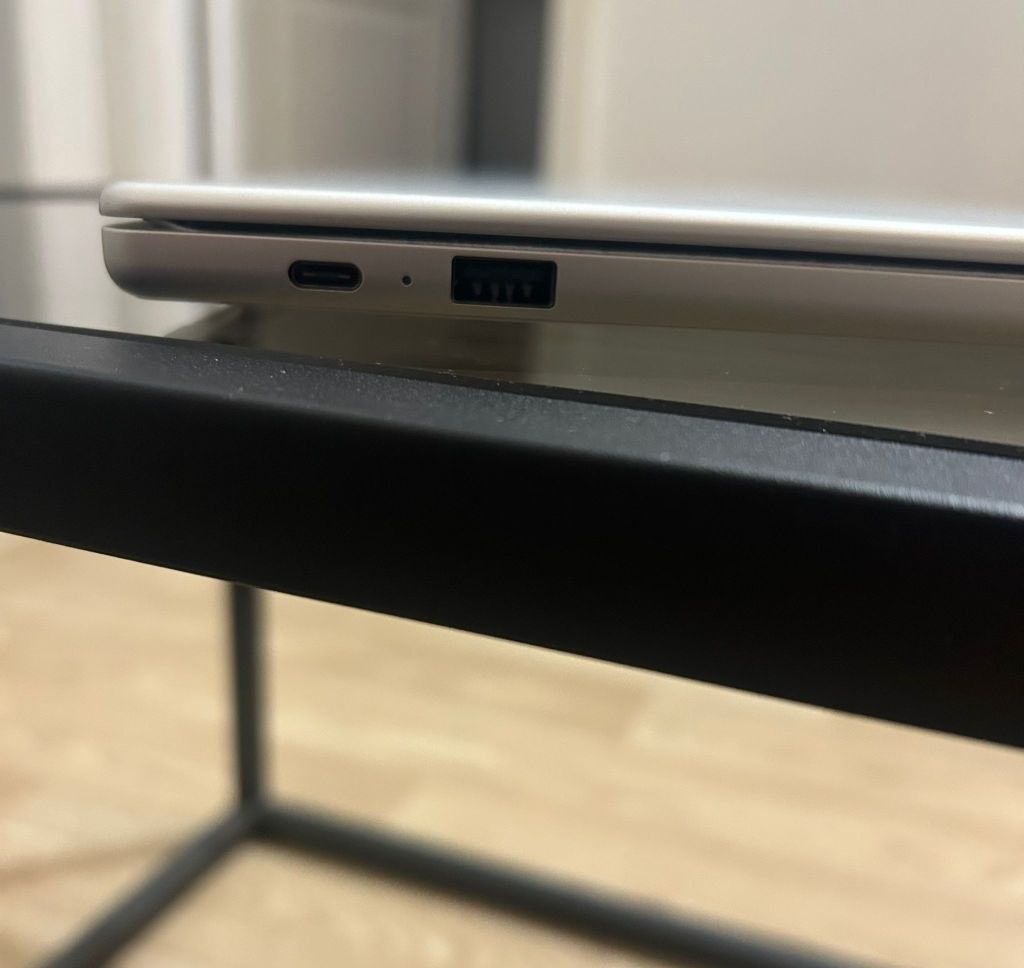
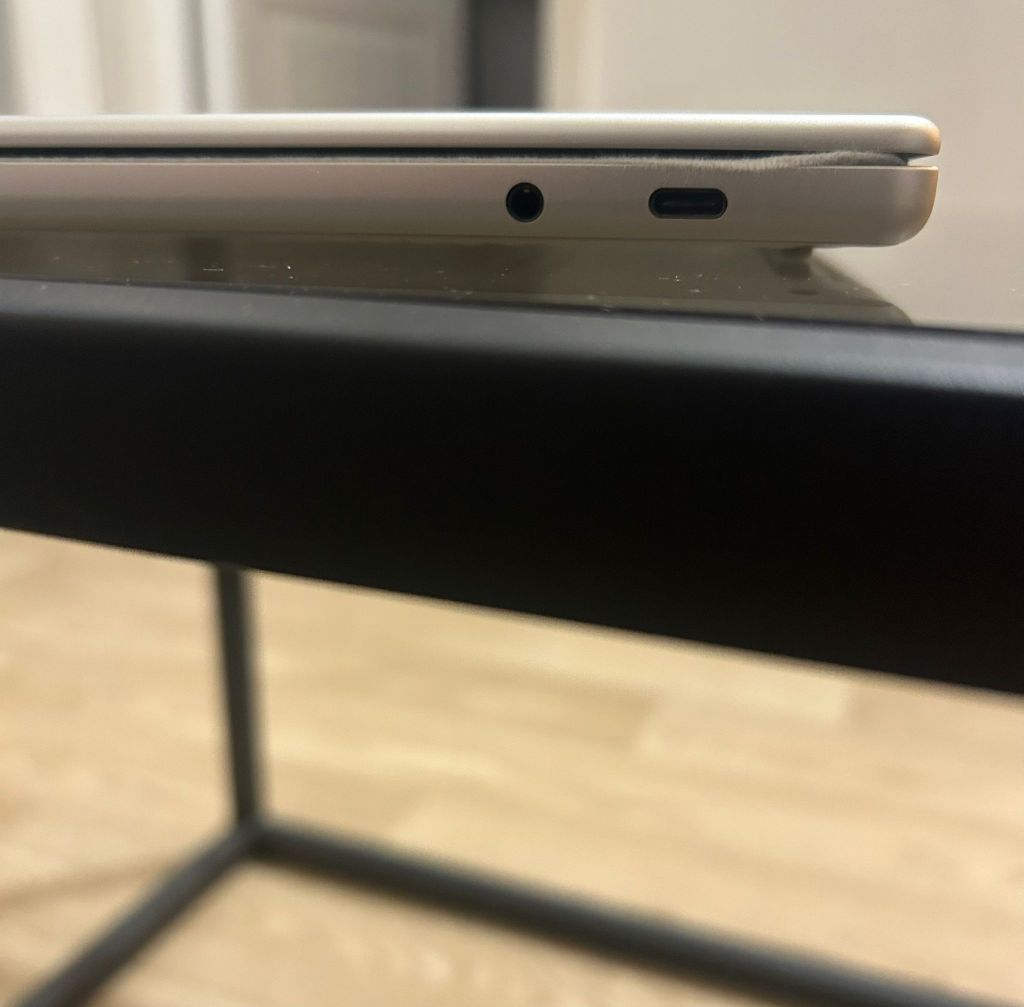
- Ports: 1 USB-A, 2 USB-C, and 1 headphone jack
- Connectivity: WiFi 7 and Bluetooth
- Weight: 2.78 lbs.
- Price point: $749 (yikes?)




Performance and Apps
Like most Chromebooks, boot-up is fast and happens in a matter of seconds. The most noticeable speed change is its UFS local storage. Unlike the entry level Slim 3 (which uses a slower eMMc drive), the files app opens instantly.
Its fast octa-core MediaTek Ultra 900 series processor and its 16 GB of RAM allow it to comfortably run Android apps and Linux apps side by side (which both run in containers). Android apps (like alternative browser Brave) opened instantly. Each app environment can be enabled or disabled separately.
Edit: A special note about Linux apps. Since this Chromebook runs on a mobile-optimized ARM processors (instead of an Intel/AMD x86) Linux app compatibility will be limited. There are distros and apps compiled for ARM like LibreOffice, but other apps (like the GNOME software store) hiccuped or were unusable.
While Chromebooks are designed to be cloud-based, it always helps to have juiced up specs on the local machine. Typically, I have Android and Linux apps turned off in regular Chromebooks to keep them running lean and snappy on web-apps alone. This machine can handle more than 10 tabs open (including media) and Android apps running side by side without barely getting warm.
Display
The 2k OLED display is a wonderfully bright 400 nits. While I try not to blind myself, a brighter screen makes it better for both productivity and media consumption. Like its entry level sibling the Slim 3, the Lenovo Chromebook Plus has a touchscreen. While it’s not a convertible (I wouldn’t use this for drawing), it makes navigation easier when you want to drag things around, sign a PDF with soft-stylus, or take shortcuts.
The graphics are an integrated ARM Immortalis-G925. While Chromebooks are not prime gaming devices, with a good connection, you can still get away with cloud-gaming on Nvidia’s cloud-based GeForce Now gaming platform.
Battery Life
The machine is advertised to have 17 hours of battery life, but real-life usage (in my case, 10-20 tabs open with mixed documents, music, and YouTube open with moderate brightness) the duration looks closer to 10 hours. It’s more than enough to last me a full work day or evening.
Build and Ports
Not including an HDMI port was a miss (especially for the price point), but an adapter can be connected to project it to a bigger display. I’m also glad it includes both USB-C ports (1 of them for charging) and a USB-A port for older peripherals. A headphone jack is also included along with a mic port.
I’ve had no problem with my random peripherals, including my Linkport hotspot that connects via USB-C and Bluetooth headphones for those times I’m away from home or work WiFi.
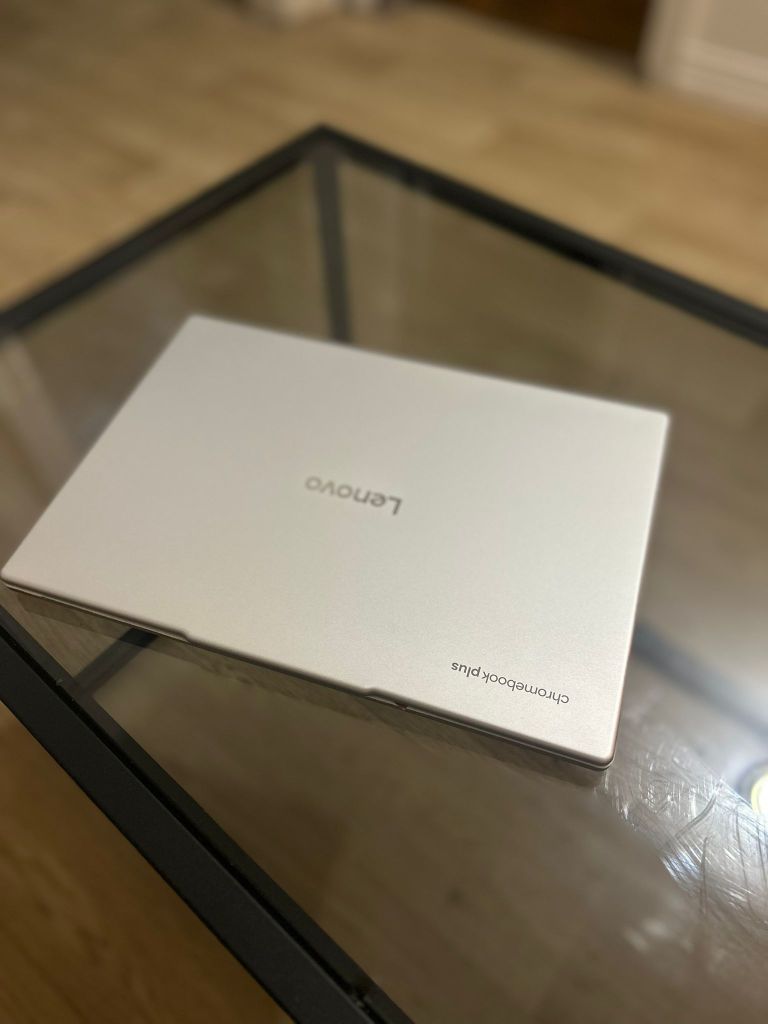
The machine itself is relatively lightweight for a 14-inche laptop and made of quality aluminum material. The 5-megapixel webcam is on a notch with a privacy shutter. The camera isn’t much to write home about (as most webcams), but I do notice faster performance with rendering Zoom virtual backgrounds (which I rarely use).
The Dolby speakers are up-firing and unexpectedly good . I was expecting them to be tinny, but they’re good enough to play music in a room at a decent volume.
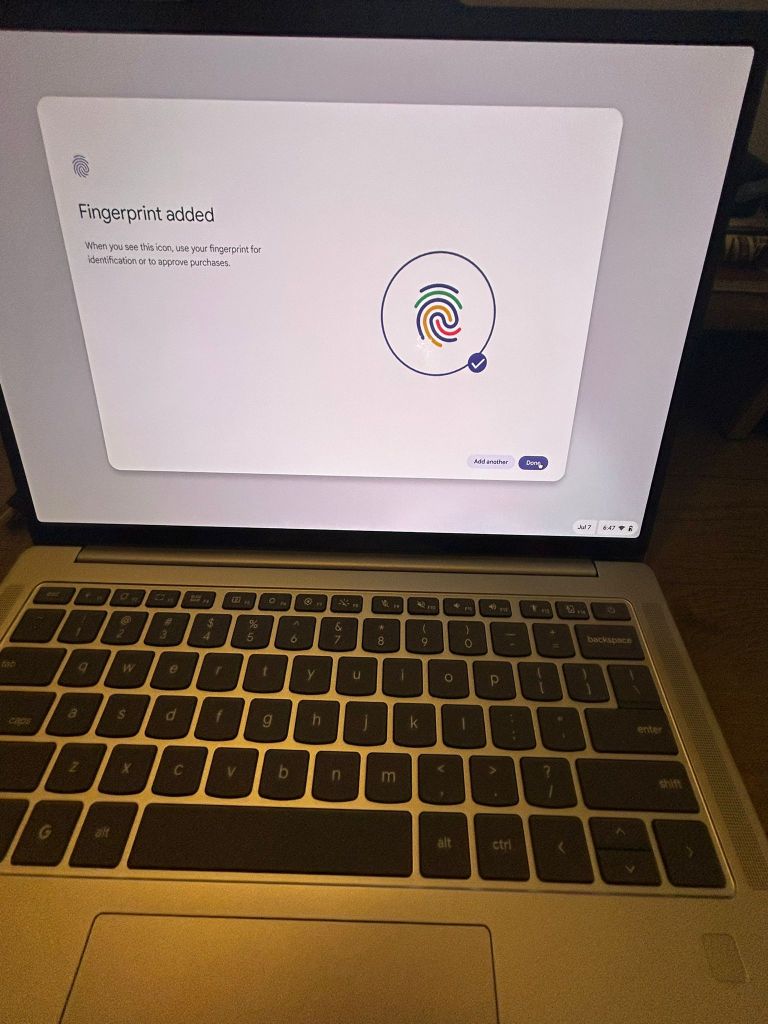
The fingerprint reader is easy to setup and works as expected. A great security feature for those of us in information sensitive fields (healthcare and education).
Cons
The biggest con for this device is its price point. It’s selling for $749 as of the time of writing (not including taxes) and to be honest, it’s really difficult to justify the price point for a Chromebook. Even if you want Chromebook Plus features (higher RAM, better storage, and faster processors), there are several good Chromebook Pluses for lower price points like the Asus Chromebook Plus CX34 going for $399 (Asus) or $499 (Best Buy) at the time of writing.
Depending on your use needs, it kind of defeats the purpose of a Chromebook since they’re designed to be affordable while fast and powerful enough for basic needs like education and productivity. These are not all-purpose machines and excel when they do a few things, and do them really well.
Still, I’m not complaining about its big leap in specs and attempts to clean up Chromebooks’ reputation as low-end garage sale machines your kids dumped after the school year was over. Many have said its reminiscent of Google’s higher-end Pixelbooks.
Final Thoughts
If you plan to use this as a daily driver, this can be an excellent viable option. My use case involves videoconferencing (Zoom and Google), Google Docs, Office 365, media consumption, and some very light gaming so I can mostly get away with using web apps.
The Google Play Store and Linux repositories (edit: pending more ARM builds) offer many viable options if you plan to mostly replace Windows or Mac OS (I always keep a separate Linux machine on the side ;-)). Unless you’re in the graphics or creative field (land of unported Adobe apps) or need a specific locally installed app for work (in which case stick to Windows or Mac—I support the best tool for the job), finding alternatives for Mac and Windows productivity apps is doable.
If you plan to have a Chromebook device for secondary use (like travel or just having around as a backup), this device would definitely not be it since the price points doesn’t justify the spend.
Overall, I’m happy to see MediaTek is investing in making faster ARM processors and showcasing their benefit in the higher-end ChromeOS lineup.
So what do you think? Should Chromebooks move more into the ARM direction like Apple did? Can higher-end Chromebooks replace Mac or Windows machines for many (but not all) functions?
Disclosure: This post is not sponsored by any company or entity listed above (I have no ties to Lenovo, Asus, Best Buy, nor Mediatek) and funded the device with personal funds.


 Chromebook Reviews